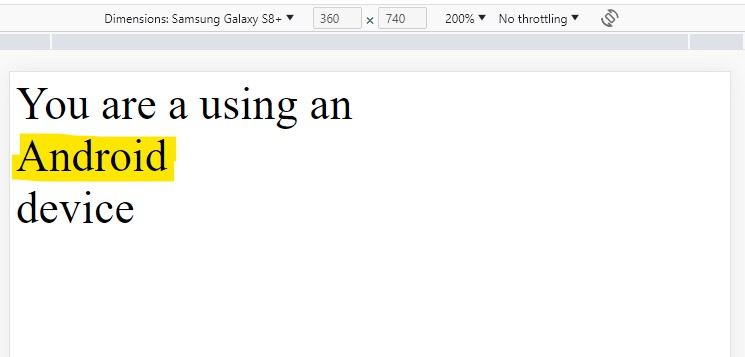
How to set up a smart banner on mobile web
In the previous posts in the ‘web-to-app’ series, I explained some different ways of providing a single download link for iOS and Android apps, as well as writing a script to detect the user’s device to serve them with device specific content.
In this post, I’ll run through another concept for routing your mobile web users to the appropriate App or Play Store to download your mobile app.
That concept is the app download banner, often known as a “smart banner”. Even if you’re not familiar with the name, you’ve most likely seen a smart banner before when browsing mobile websites.
They look something like this…
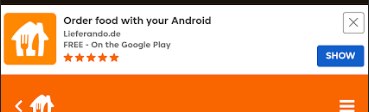
… and are designed to push mobile users to download the website’s mobile app – where there is a (hopefully 🙂 better user experience and higher chance of conversion.
Crucially for our ‘web-to-app with single download link’ topic, app download banners can generally identify whether the user is on Android or iOS and can show them device-specific content (including a download link).
There are several options for implementing these banners.
-> Apple native smart banner
Apple has its own native smart banner solution in the Safari browser and it’s very easy to implement, with just a single line of code added in the head section of your website’s HTML:
<meta name=”apple-itunes-app” content=”app-id=myAppStoreID, app-argument=myURL”>
Once the code snippet is added, the smart banner will appear at the top of the screen on mobile web.
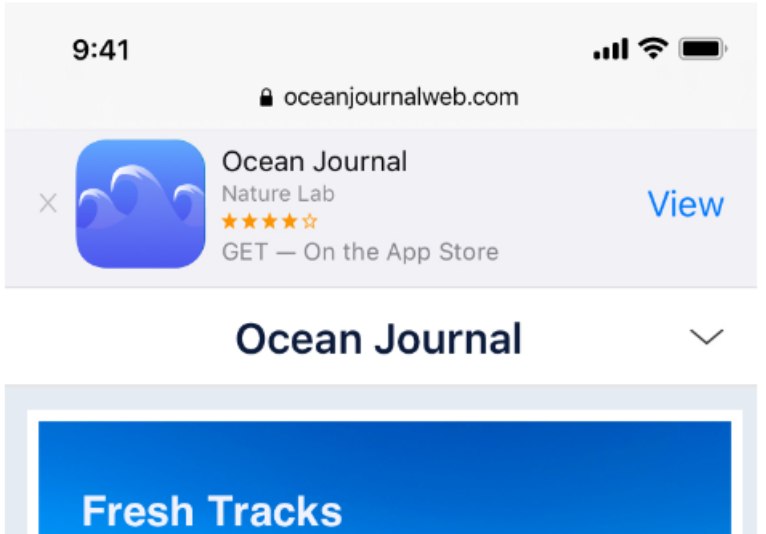
Additionally, it will detect from the OS if the app is already installed and send the user to the App Store or directly to the installed app as appropriate.
Unfortunately, there are some limitations. This only works on iOS devices and only in the Safari browser. Here are some more details on the implementation steps.
-> Specialised tool for banners and deeplinking
Another option is Branch.io, which allows you to set up an app download banner with a lot of added functionality: no code styling, templates, tracking and deeplinking. Mobile measurement partner Adjust offer a less slick alternative.
The functionality comes at a cost however, so might not be suitable for smaller apps or those on a tight budget.
-> Smartbanner.js
Yet another option. Smartbanner.js is a free and open source library, and allows you to easily add an app download banner to your website without coding or any other tricky things. There are a bunch of customisation options, including the crucial ability to do device specific content.
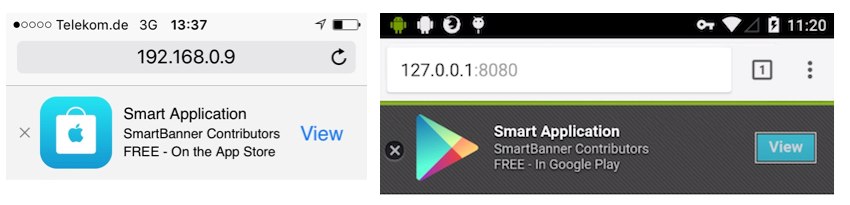
Smartbanner.js is the best choice for those folks who can handle some technical configuration and don’t need all the complexities like tracking offered by a commercial tool.
To be fair, Smartbanner.js is probably the best choice for everyone. However, this is a marketing technology blog for Marketing Technologists and we like to do things ourselves, so let’s take a look at the DIY option.
_Setting up your own app download banner__
First of all, we need to nail down the requirements for our app download banner:
- Works on both iOS and Android
- Detects the device type and provides device specific content
- Doesn’t show on up desktop
- Records when a user clicks the close button, so they don’t see the banner repeatedly
In the interests of time (and also considering you will do your own branding anyway), this template will be a very basic, stripped down version – without styling and all those fancy things.
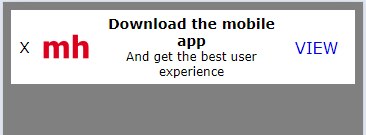
1. Open a new project in your developer tool of choice and paste the boilerplate
<!DOCTYPE html>
<html lang="en">
<head>
    <meta charset="UTF-8">
    <meta name="viewport" content="width=device-width, initial-scale=1.0">
    <meta http-equiv="X-UA-Compatible" content="ie=edge">
    <title>App download banner</title>
    <style>
    </style>
</head>
<body>
    <script>
    </script>
</body>
</html>
2. Let’s add the HTML content. Add in the following code just after the opening <body> tag. You can customise the banner header and text here, and the button text too if you like
<div id="app-download-banner-top" class="app-download-banner">
        <div id="close">
            X
        </div>
        <div id="logo">
            <!--Remember to replace this with your own logo!-->
            <img src="https://martech-hacks.com/img/app-icon.svg">
        </div>
        <div id="description">
            <div id="header">Download the mobile app</div>
            <div id="text">And get the best user experience</div>
        </div>
        <div id="button">
            <a id="app-download-link">VIEW</a>
        </div>
    </div>
3. Next we need to provide the very basic styling for the banner. Add the CSS in the <style> section. I’ve included 2 versions of the banner: app-download-banner-top and app-download-banner-modal. If you’d like to see the modal one, just replace that in the HTML.
a {
            text-decoration: none;
        }

        body {
            background-color: grey;
            font-family: Verdana, Geneva, Tahoma, sans-serif;
        }

        .app-download-banner {
            display: none;
            align-items: center;
            width: auto;
            background-color: white;
            height: fit-content;
            padding: 5px;
        }

        #app-download-banner-modal {
            position: absolute;
            width: 95%;
            top: 0px;
            bottom: 0px;
            left: 0px;
            right: 0px;
            margin: auto;
        }

        #app-download-banner-top {
            position: relative;
        }

        #close {
            width: 5%;
            font-size: 15px;
            text-align: center;
        }

        #logo {
            width: 20%;
            display: flex;
            align-content: center;
            margin: auto;
        }

        #logo img {
            max-width: 70%;
            height: auto;
            margin: auto;
        }

        #description {
            width: 55%;
            text-align: center;
        }

        #header {
            font-weight: 600;
            font-size: 14px;
        }

        #text {
            font-size: 12px;
        }

        #button {
            text-align: center;
            width: 20%
}4. Last step. We need to add some script to put the correct link for Android and iOS users, show/hide the banner when appropriate and set the local storage to record when the close button is tapped.
Put this in the <script> section just before the closing <body> tag, and make sure you change the ‘app_download_link’ variables to your app’s links in the App/Play store!
document.getElementById("close").addEventListener("click", showhide_banner.bind(this, 'none'));
        window.addEventListener("load", allow_banner.bind(this, 'flex'))

        function allow_banner() {
            var app_download_banner_value = localStorage.getItem("app_download_banner");
            // Define max screen size to hide download banner on desktop. You can increase this value if you want to include tablets.
            var screen_size = window.matchMedia('(max-width: 568px)')
            if (app_download_banner_value != 'closed' && screen_size.matches) {
                get_device_type()
                showhide_banner('flex')
            }
        }

        function showhide_banner(action) {
            var banners = document.getElementsByClassName("app-download-banner");
            Array.from(banners).forEach(banner => {
                banner.style.display = action
            })
            if (action === 'none') {
                set_close_localstorage()
            }
        }

        function set_close_localstorage() {
            localStorage.setItem("app_download_banner", 'closed');
        }

        function get_device_type() {
            var userAgent = navigator.userAgent
            var platform;
            var app_download_link;
            if (userAgent.includes('Android')) {
                platform = 'Android'
                // redirect link for Android. Add Play Store link below
                app_download_link = 'https://www.google.com'
            } else if (userAgent.includes('iPhone') || userAgent.includes('iPad')) {
                platform = 'iOS'
                // Redirect link for iOS
                app_download_link = 'https://www.apple.com'
            } else {
                platform = 'non-Android or iOS'
                // Fallback redirect for other platforms. You can include what you like here. Perhaps a redirect to your website
                app_download_link = 'https://www.windows.com'
            }
            document.getElementById('app-download-link').href = app_download_link
        }
As a final note: the local storage doesn’t expire, meaning user’s who close the banner will never see it again (unless they clear their local storage manually). You may want to put an expiry date in there to show the banner again after some weeks/months.
_Summing up__
App download or smart banners are a tried and tested way to people into your mobile app, where you have more chance to convert them and serve them with a better user experience. There are many options for smart banner implementation.
In this post, we’ve gone through a very basic example of how you might set one up yourself. I hope it’s a useful starting point!
You can find the complete code for this project in the Martech-Hacks Github repo.