How to create a database & simple API with Google Apps Scripts and Sheets
If you would like to see how to use a Google Apps Scripts database to serve content for web pages, check this follow up post!
…and if you’re interested in some more Google Apps Scripts database functionality once you’re done here, have a look at this post.
Google Apps Scripts (or GAS) is a Javascript-based scripting platform that can be used with products such as Google Sheets to automate tasks, move data around and integrate your marketing services.
One of the best things about GAS is its flexibility and ease of use: It’s very quick to set up an MVP application that can handle relatively complicated tasks without having to involve your Engineering or Data teams.
Here we will look at one super useful use case with Google Sheets, as well as the basic set up to get you started with GAS.
What are we doing?
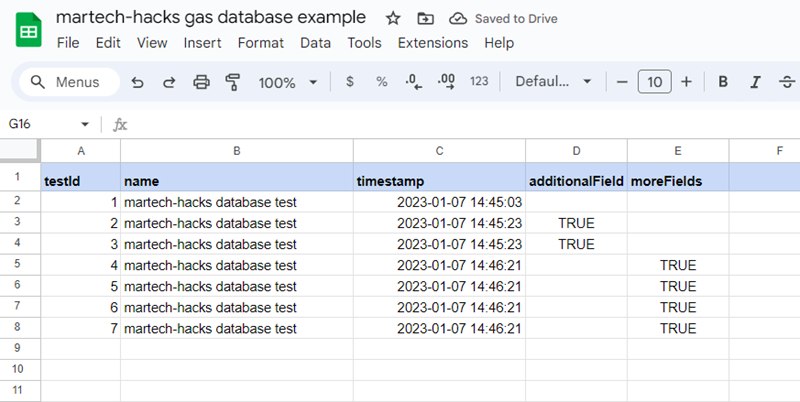
Setting up a web app with GAS and loading/extracting data via API – effectively turning Google Sheets into a simple database.
Once our script and web app is ready, we will load/extract customer IDs into/from our Google Sheets database.
What will I need?
- Google account
- Postman, for testing
- Some concentration time for the run through (approx. 30 mins)
Important note before we start: edits to the script will not take effect until you re-deploy the webapp. Bear that in mind if your script shows unexpected behaviour.
Let’s get started!
1. Create a Google Sheet. Give it a name and add a title in the first column (it doesn’t matter which name/title you choose – any will do!)
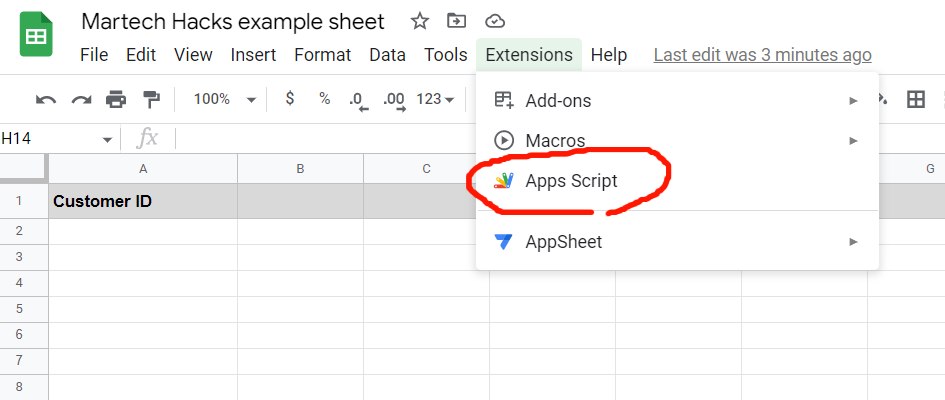
2. Once you’ve set up your Sheet, go to Google App Scripts. This can be found under the Extensions menu bar
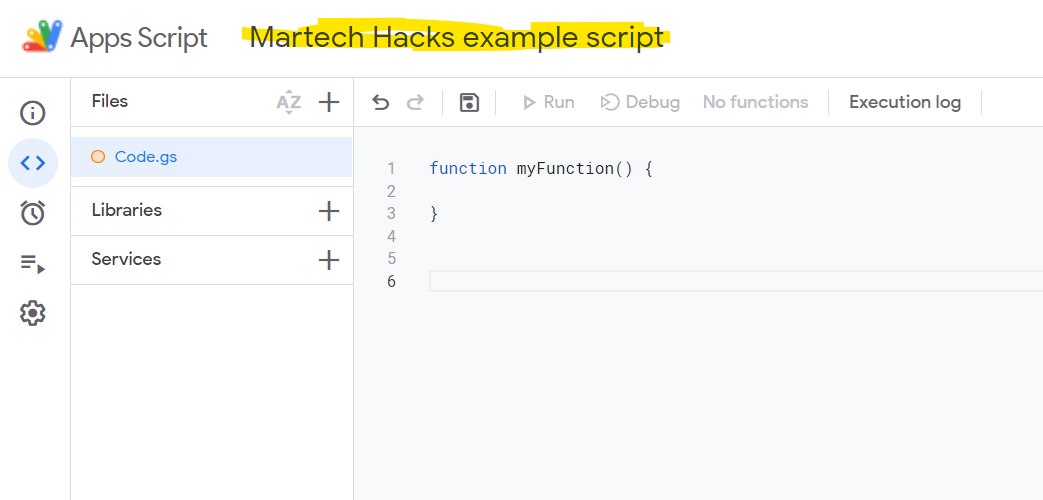
3. Your new project will be empty at this point, with only Google’s default function to keep it company – but make sure you give your script a name!
Google App Scripts allows for 2 HTTP request methods:
- POST (used to send data)
- GET (used to read data)
You can read more about the basics of HTTP requests on w3schools.
Writing data to the Google Sheets database
We will start with the POST method – to allow us to load the customer IDs to our Google Sheets database.
4. GAS uses the doPost(e) function to process POST requests: whenever a POST request is made to your sheet’s URL, the doPost(e) function will be run by default.
The (e) parameter contains the request data – including the content length, body, and headers. We will explore that in more detail shortly.
For now, add the following script to your project.
Please check the comments (written like this /* */)in the script for details and further instructions.
/* the below snippet only allows the script to run in the current document, for security */

/**
 * @OnlyCurrentDoc
 */

function doPost(e) {
  /* Firstly, we need to define where the data is being sent to. We will get
  the active sheet and tab, and assign them to the 'sheet' variable. When you have a sheet with multiple tabs, you will need to use a different method - but that’s a problem for another day! */
  var sheet = SpreadsheetApp.getActiveSpreadsheet().getActiveSheet();

  /* Next, we get the last row with any data from the sheet. Seeing as the
  only row with data is the column title, this variable should have value ‘1’ */
  var lastRow = sheet.getLastRow();

  /* Assign the next row variable. Super simple - just the last row with data, plus 1 */
  var nextRow = lastRow + 1;

  /* Here we use the getRange and setValue methods to add the entire request parameter to a specific cell. In this case, our customer ID column (A) and the next row (2)*/
  sheet.getRange('A' + nextRow).setValue(e)

  /* Finally we return a success message to the request source */
  return 'customer ID successfully added to database!'
}
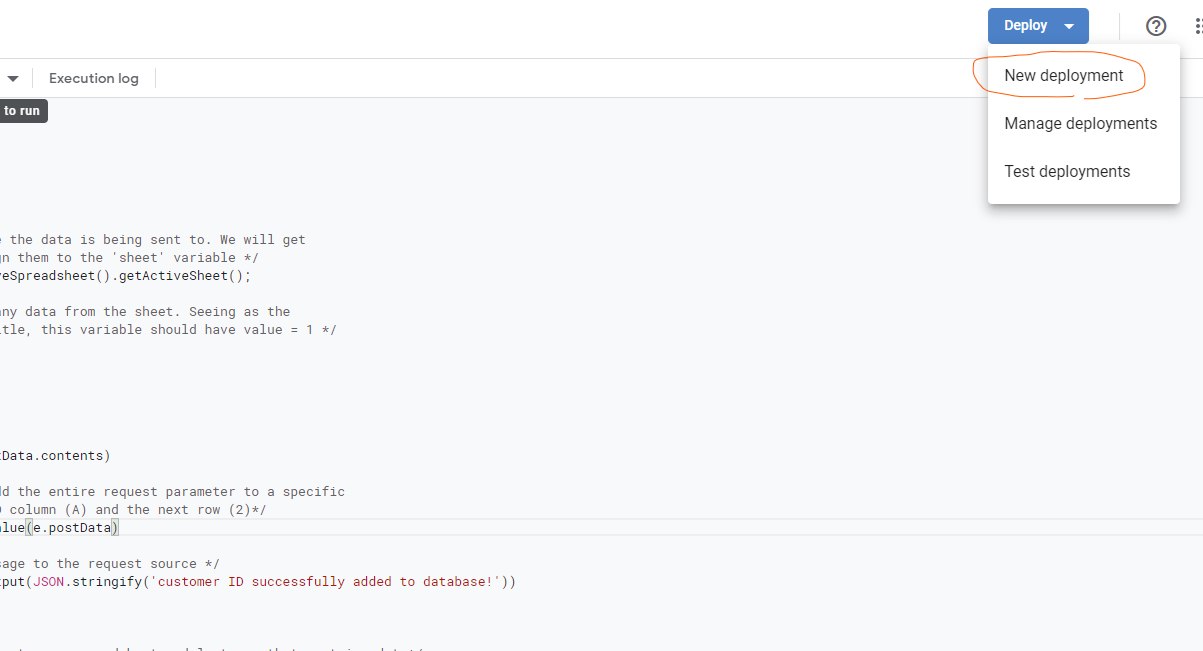
5. To be able to add data to our Sheet via API, we need to deploy it as a web app. Go to the top right of the screen, click Deploy and New Deployment.
6. Select ‘web app’ deployment type from the settings in the top left. Give your deployment a name, configure it to execute under your account and allow access to ‘anyone’.
This sounds scary – but it just allows the script to run without authentication. Although it will allow anyone to add/read data to your sheet, it doesn’t give them access to your other personal data. In any case, we’re only going to be testing at this stage!
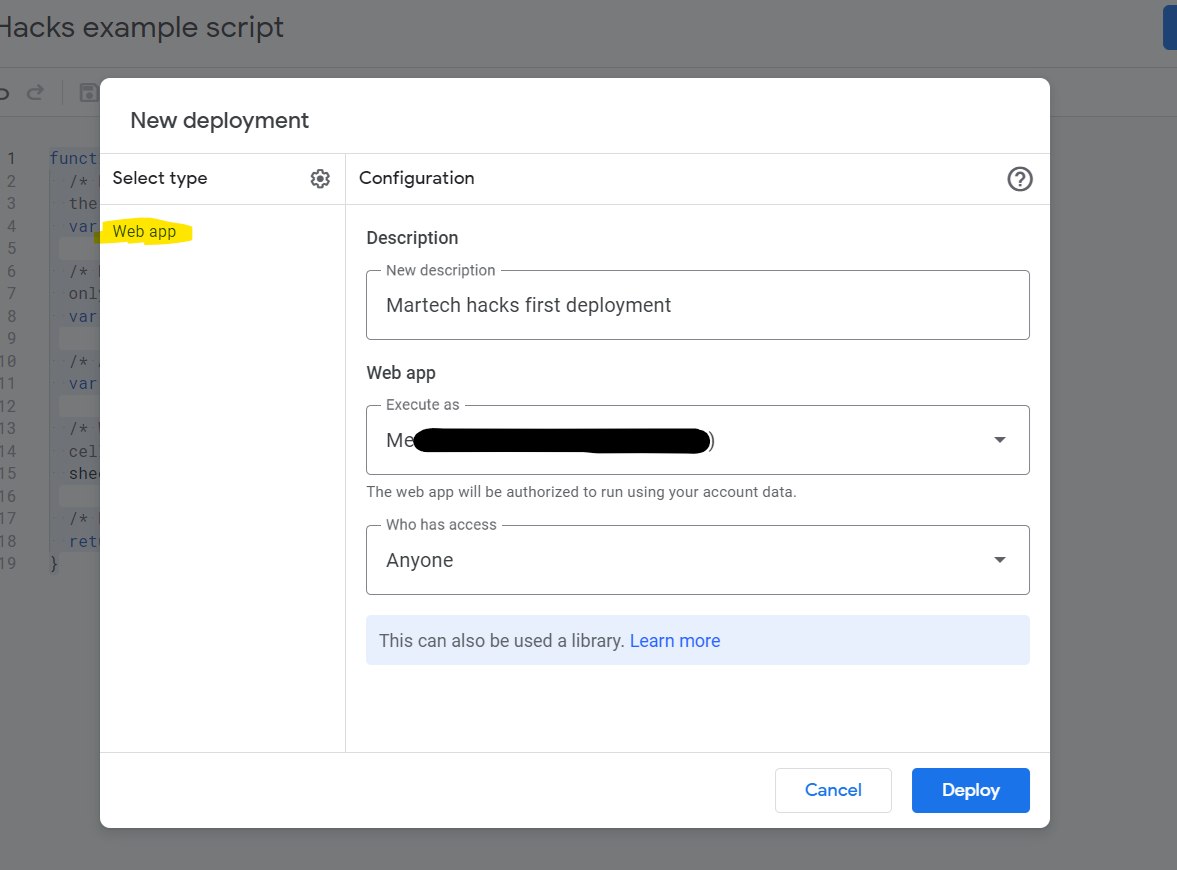
7. Once you’re ready, click Deploy. Google will show a prompt to ask you to authorise the script/web app. Do so, and you will receive your deployment ID and web app URL. This URL is where you will send your Post and Get HTTP requests! Your web app URL should look something like this: https://script.google.com/macros/s/PPfycby4t4-wGyF3xlp_z8yrae8CNG1LDPD836qdbaSL6qYZjyb-z-IIECb_6cabsaA/exec
Let’s test it!
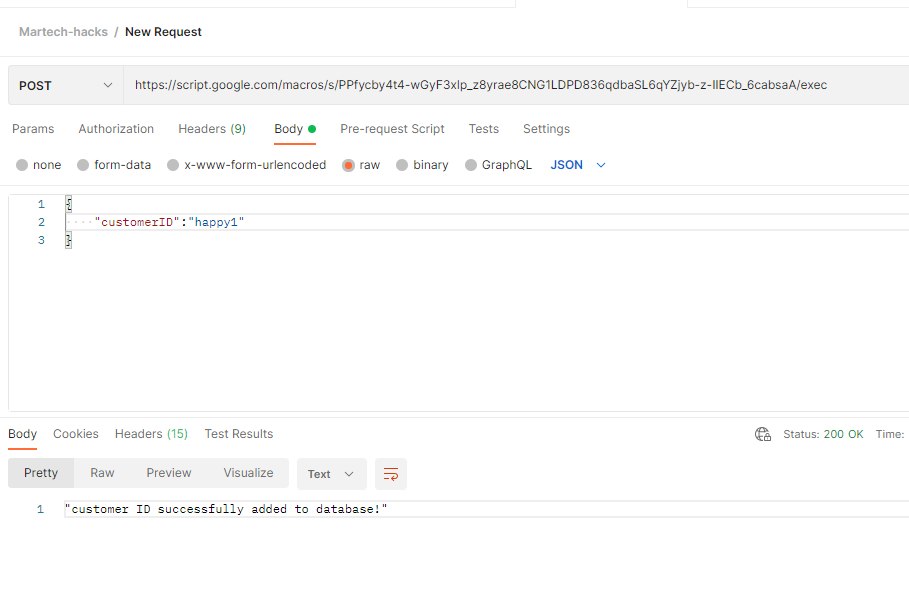
8. Power up Postman and create a new Request. Paste your web app URL to the URL bar and add your customerID in JSON format.
{
    "customerID":"happy1"
}
If all goes according to plan, you should see your success message:
However, the data we have in our sheet is not very useful:
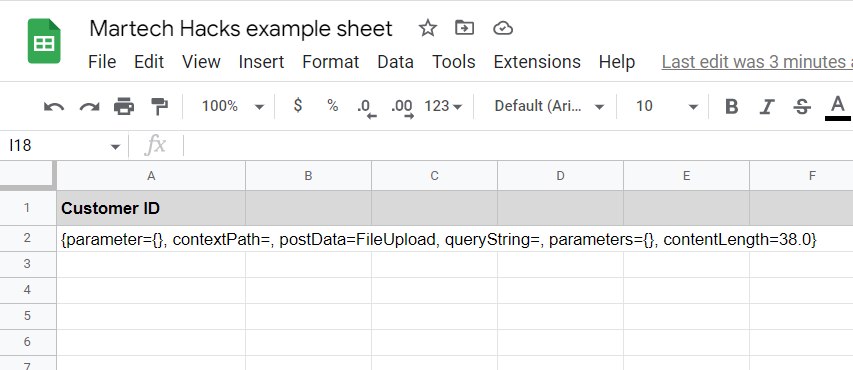
We need to read that useful customer ID data from the ‘postData’ object (the 3rd parameter in the comma separated string in the screenshot above) and parse it as JSON.
9. Go back to the script and add the following snippet. Note: Make sure the customerID parameter exactly matches what you’re sending from Postman.
/* Parse postData as JSON  */
  var requestData = JSON.parse(e.postData.contents)

  /* We use the getRange method to add the entire request parameter to a specific
  cell. In this case, our customer ID column (A) and the next row (2)*/
  sheet.getRange('A' + nextRow).setValue(requestData.customerID)
At this stage, a super important thing to note about Google Web Apps is that any script changes won’t take effect until you redeploy your web app!
10. Go to Deploy and select Manage Deployments from the list. Next, click the Edit icon and select New Version. Deploy it with the same settings.
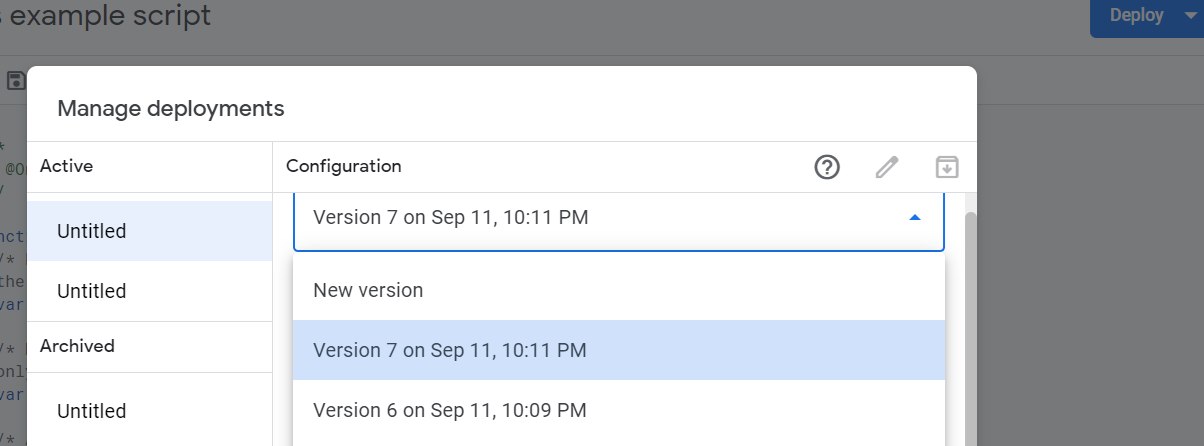
11. Test again via Postman and you should see your customer ID being added correctly!
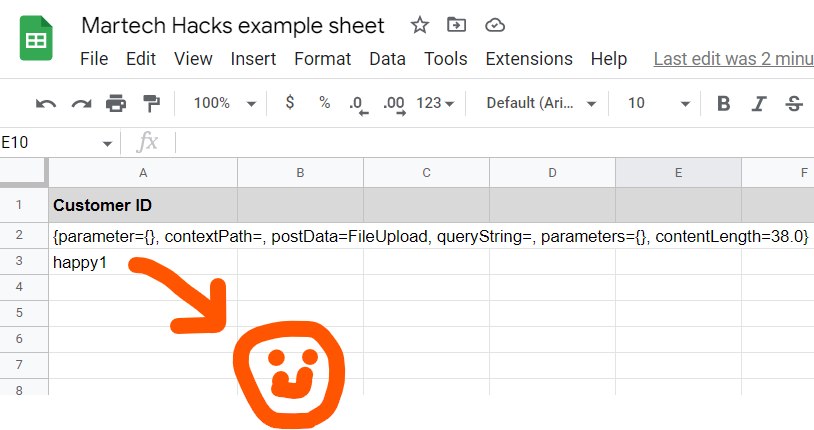
Reading data from the Google Sheets database
You’ve written some data to your sheet! Now to get that data back out again…
Before we start with the script, let’s add some more customer IDs to your sheet. Repeat step 8 from the previous section, with some distinctive names of your choice.
12. GAS uses the doGet(e) function to process GET requests – all get requests made to the web app URL will trigger this function. Please add this code snippet below to your project. As before, check the comments for more details.
function doGet(e) {
  /* Again , define the sheet var to get your spreadsheet and last row that contains data*/
  var sheet = SpreadsheetApp.getActiveSpreadsheet().getActiveSheet();
  var lastRow = sheet.getLastRow();
  /* Seeing as we now have multiple customer IDs in our sheet in column A, we will want to get everything from that column. Here we make a variable and get range from the first row (containing the title) to the last row with data.  */
  var returnData = sheet.getRange('A1:A' + lastRow).getValues()
  /* Return the output as a JSON string */
  return ContentService.createTextOutput(JSON.stringify(returnData))
}
13. Once you’re happy with the code, we can move on to testing. But first, remember to redeploy your project as a webapp: repeat step 10.
14. When redeploying a script, GAS will give you the same URL as before, so testing will be easy! Go back to Postman, remove the post body from our last test and change the HTTP method to GET in the top-left corner. Run the test and you should see your example customer IDs returned
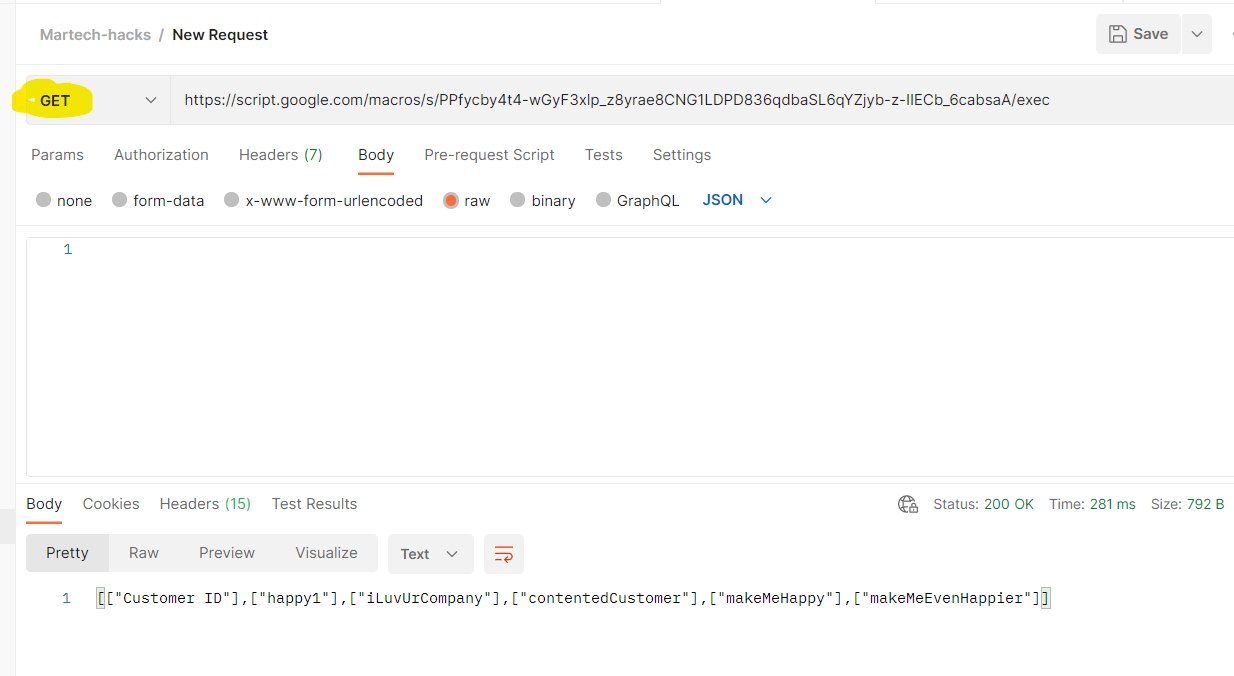
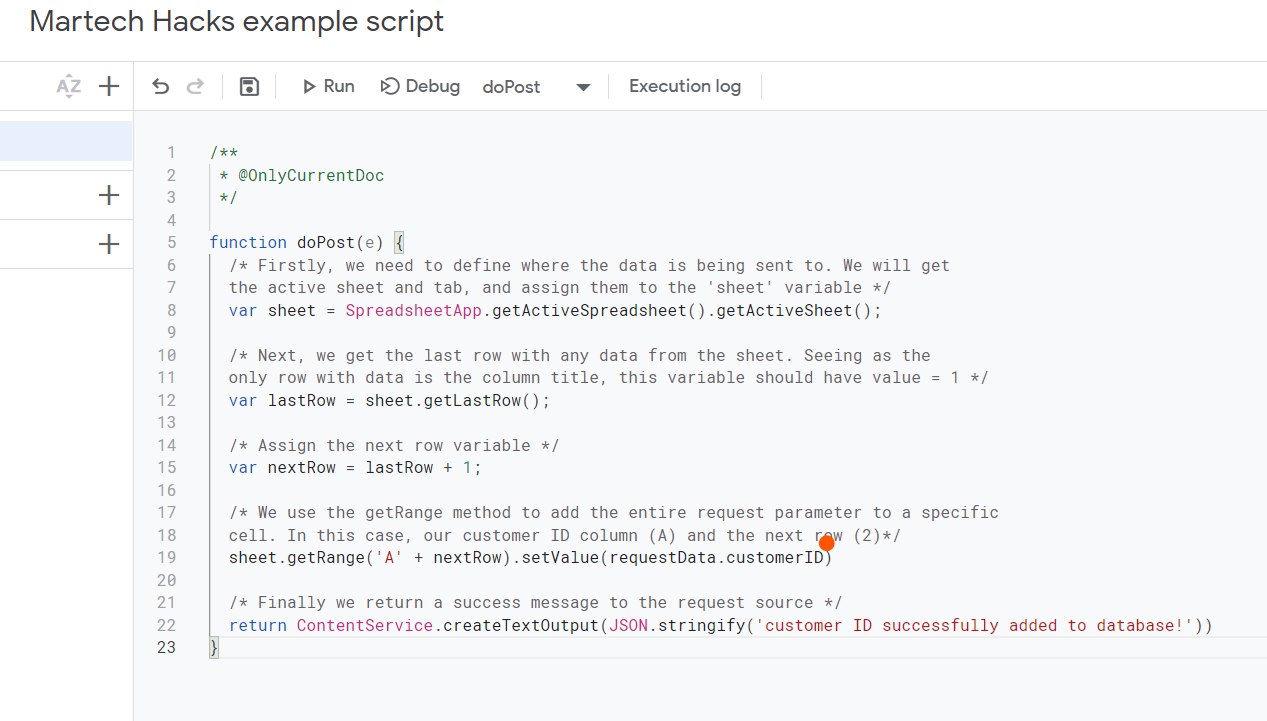
All done! Here’s the complete script for reference:
/**
 * @OnlyCurrentDoc
 */

function doPost(e) {
  /* Firstly, we need to define where the data is being sent to. We will get
  the active sheet and tab, and assign them to the 'sheet' variable */
  var sheet = SpreadsheetApp.getActiveSpreadsheet().getActiveSheet();

  /* Next, we get the last row with any data from the sheet. Seeing as the
  only row with data is the column title, this variable should have value = 1 */
  var lastRow = sheet.getLastRow();

  /* Assign the next row variable */
  var nextRow = lastRow + 1;

  /* Parse postData as JSON  */
  var requestData = JSON.parse(e.postData.contents)

  /* We use the getRange method to add the entire request parameter to a specific
  cell. In this case, our customer ID column (A) and the next row (2)*/
  sheet.getRange('A' + nextRow).setValue(requestData.customerID)

  /* Finally we return a success message to the request source */
  return ContentService.createTextOutput(JSON.stringify('customer ID successfully added to database!'))
}

function doGet(e) {
  /* Again , define the sheet var to get your spreadsheet and last row that contains data*/
  var sheet = SpreadsheetApp.getActiveSpreadsheet().getActiveSheet();
  var lastRow = sheet.getLastRow();
  /* Seeing as we now have multiple customer IDs in our sheet in column A, we will want to get everything from that column. Here we make a variable and get range from the first row (containing the title) to the last row with data.  */
  var returnData = sheet.getRange('A1:A' + lastRow).getValues()
  /* Return the output as a JSON string */
  return ContentService.createTextOutput(JSON.stringify(returnData))
}