How to make an API call
Martech Specialists make extensive use of APIs for a range of tasks, including getting data for analytics, triggering campaigns, loading data into your tools and setting up integrations & automations.
I won’t try to explain all the ins-and-outs of APIs here, but to put it simply an API or application programming interface is a method of transferring data from one place to another.
It has an endpoint, which looks like a standard URL. There are different methods available for contacting this endpoint, of which GET (to retrieve data) and POST (to send data) are the most common. You will normally need to provide some kind of password (authentication) to access the API and can also include headers – additional pieces of information with the request.
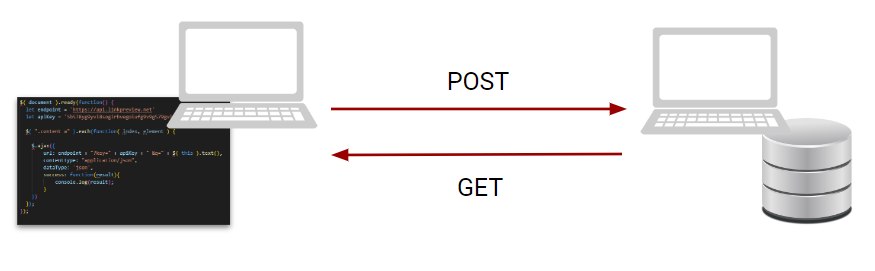
Most marketing tools will provide you with an API as well as documentation (of varying helpfulness) on how to access the API, the various endpoints available and what authentication you will need.
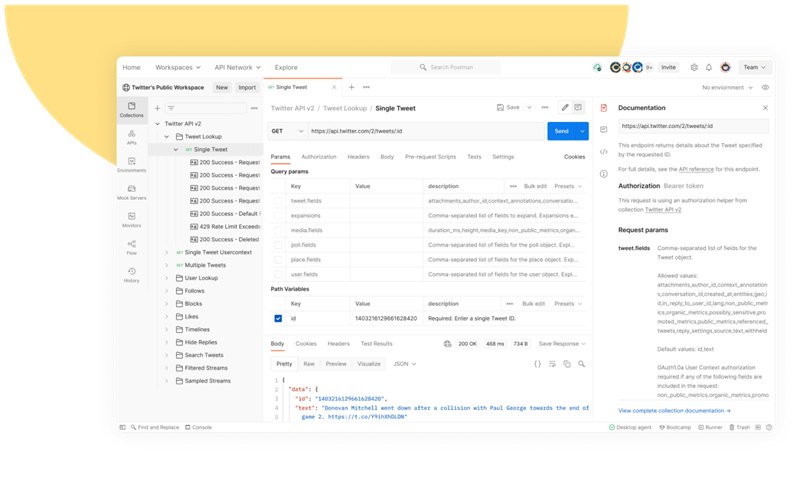
Once you have identified the API you need for your project and consulted the documentation, you will need an easy way to test everything. Before we get started, I recommend you download and install Postman, my favourite API testing tool. You can also read more about Postman in the Martech Hacks tool review.
What are we doing?
In this post, I’ll walk you through:
- Setting up an API call – both GET and POST requests
- Including headers, request parameters and authentication by API key
What will I need?
For this guide, you should have a basic knowledge of what APIs are – endpoints, headers, and authentication by API key. In case you’d like to read up on APIs, I can recommend this guide from Hubspot.
Let’s get started
We’ll be making our GET request with a marketing personalisation classic: getting weather updates.
How could these updates be integrated into a marketing strategy? Example: If you are in the courier business, you may wish to use weather reports to trigger push notifications in real-time to warn customers that their deliveries will be delayed (or to encourage a generous tip for those hard-working riders).
Whatever your use case, you will need a weather forecasting service with API. I will use examples here from OpenWeather. Before we can start testing, you will need to go to OpenWeather and make a free account (just go to ‘sign in’ in the top right corner and follow the instructions.
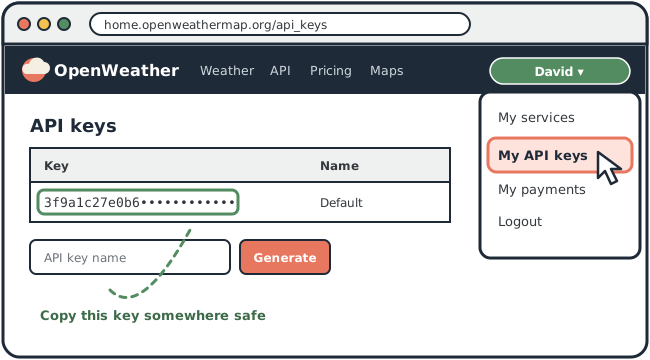
Once you’re all signed up and logged in, you need to get the API key. This is your unique password for accessing the API, and is available by clicking on your profile name and selecting ‘My API keys’ from the dropdown box. Copy this somewhere convenient (a basic text editor like Notepad will do).
We’re ready to get started with some API calls!
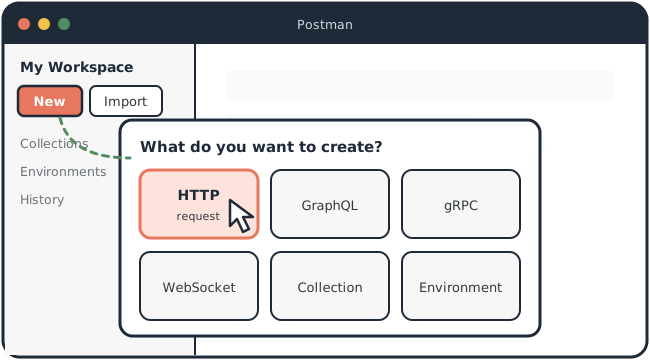
1. Open up Postman (if on the desktop version. Sign in if on the web app). Navigate yourself into your main workspace (it should be called My Workspace if you’re a new user). Once there, click new and then select HTTP request from the menu.
Before we can go any further, we need to find out the structure of our target API: which endpoint to contact, what additional parameters are required and how to authenticate our call.
OpenWeather provides detailed documentation for that. For our first API call, we’ll go with the endpoint for pulling the current weather conditions. From the docs, you can find an example API call:
https://api.openweathermap.org/data/2.5/weather?lat={lat}&lon={lon}&appid={API key}The documentation also tells us that the lat (latitude), lon (longitude) and appid parameters are required for the API call. An error will be returned if they are missing.
2. Back in Postman, copy and paste the example link from the documentation and make sure the API method is GET (please see screenshot below). In the Params tab, populate the longitude and latitude parameters.
(I have used the coordinates for Ashton Gate stadium in Bristol, home of Bristol City FC. You can find this in Google Maps). You will also need to add the API key that you saved earlier.

3. Once you have added these, click Send. You should be returned the weather conditions for your chosen location!
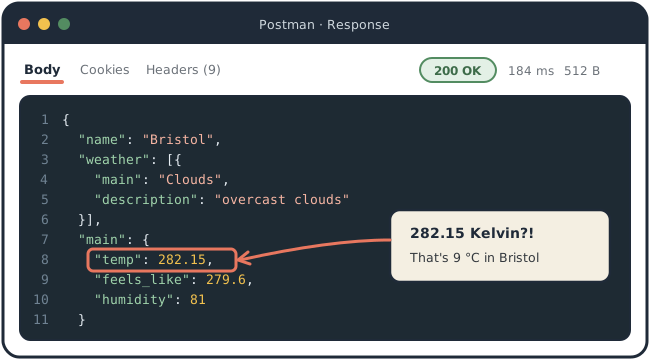
You’ll notice the temperature is returned in Kelvins, which might be common for measuring the thermal output of the sun’s corona, but is less useful for updating your customers on chilly November evenings in Bristol.
Fortunately, OpenWeather allows us to specify the measurement units we wish to use; the option parameter ‘units’ is included in the documentation for just this case.
4. Add ‘units’ to the params list in Postman and give it a value of ‘metric’. Resend your request and you should get your temperature results in the much more understandable celsius.
That’s all for the basics of GET requests, but feel free to play around with the other endpoints on OpenWeather when you have the chance!
Now we’ll move on to POST requests. As OpenWeather doesn’t accept such requests, we will need to switch to a different API.
For this example, we’ll be using Lecto.ai. This tool allows us to translate texts in real time (which incidentally, is another rock solid marketing API use case!). Like OpenWeather, you will need to sign up for an account – but don’t worry, there is a free tier (limited to 1000 characters per call).
5. Create an account. You will be provided with an API key, available under the account section of the lecto dashboard.
Let’s consult the documentation! The endpoint for making simple translation requests is https://api.lecto.ai/v1/translate/text. The documentation also tells us that we will need to include:
- the API key
- a content-type header (to tell the Lecto server which programming language we are communicating with – in this case, JSON)
- a body, which contains the text to be translated & the languages we are translating to/from.
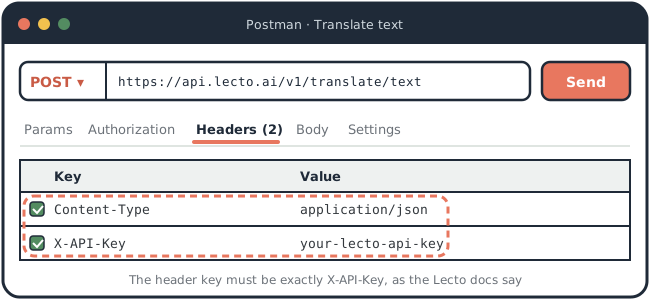
6. Go back to Postman and make a new request. Paste the Lecto endpoint like we did with the OpenWeather one, but this time change the method to POST)
7. Go to the Headers tab. Add a header: Content-Type and set the value to application/json – this will tell the server that we want a response in JSON format. You should also include the API key. Note from the documentation that the key of the header should be ‘X-API-Key’.
8. Finally, go to the Body tab and enter the following JSON code (you can choose your own text or use my example 🙂
{
"texts": ["Would you possibly be so kind as to translate this question in English to the Spanish and German languages please? Many thanks!"],
"to": ["es", "de"],
 "from": "en"
 }
9. Click send, and your freshly translated sentence will be returned!
Summing up
We’ve set up Postman and made test GET and POST requests, using examples from the OpenWeather and Lecto.ai APIs.
Of course, we’ve only scratched the surface of APIs and what they can do with integrating your martech stack. Most of your tech stack will have an API, so I’d suggest testing those and discovering what they can do.
There’s also a handy list of open APIs on Github if you’d like to explore further.