How to create a customer referral program with Google App Scripts, a landing page builder and an email marketing tool
Getting your existing customers to promote your product or service is one of the most effective acquisition channels there is.
In fact, according to statistics, setting up a robust customer referral program will yield prospects who are more likely to convert, have a higher lifetime value and are less likely to churn. The rewards that you pay out for successful referrals usually cost less than the budgets you need for other acquisition channels too.
Good news all around!
The majority of established companies will already have a mature referral program in place. However, younger companies (with restricted developer resources) may not have had a chance to set one up.
If you’re one of those marketers seeking all those lovely referral program benefits, but without engineers to help you, don’t worry! It’s perfectly possible to set up a functional customer referral program which can be run outside of your company’s core infrastructure.
Here, I will show you how to set up a customer referral program with nothing more complicated than a bit of Google App Scripts.
_What will I need?__
The mere necessities of Martech 🙂
- Google Sheets
- Google App Scripts
- A landing page builder (ideally with pages hosted on your own company domain)
- An email marketing tool (already set up, with existing customer records and option to import data associated with a specific user). Important: you must be able to store attributes which are associated with an individual user
And before we start, an important note on terminology:
- Referrer = your existing customer that you want to promote your product
- Referee = the friend or family member that you existing customer invites
Important distinction! It’s easy to get them confused.
And a final final note. I’m looking purely at the technical setup here. In case you’d like a more general run through on the theory of referral programs – what reward to offer, when to pay the reward, terms and conditions etc. take a look at this article.
_How does it work? Give me an overview__
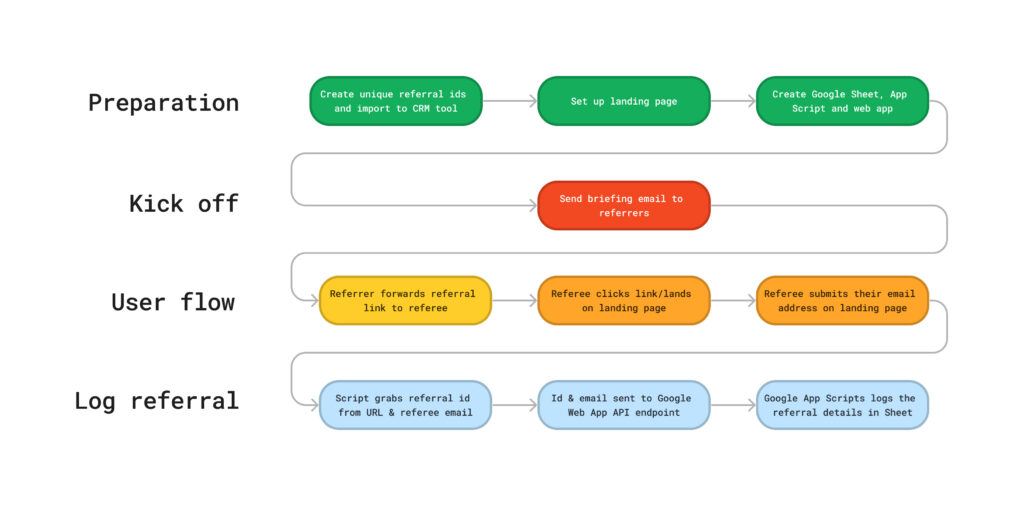
Check this handy diagram for a breakdown of the process:
_Ok, now talk me through the details__
***Preparation***
1. Create unique referral ids and import them to your email marketing tool
Each referrer needs a unique ID (we could just use their email address, but that is bad for data protection and looks amateurish).
The referral id is how we tie back a successful referral to the one initiating it. In my example below, I’ve just added incremental numbers for simplicity, but you may wish to use something more sophisticated – like a UUID.
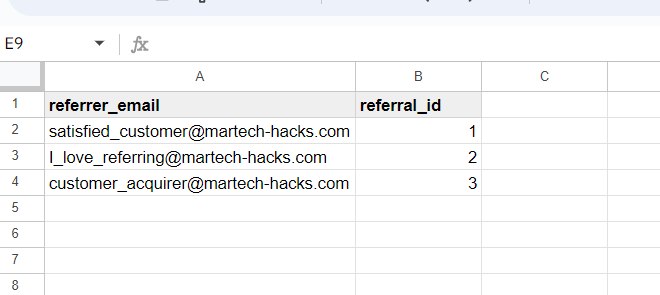
Next up, you need to import your referral ids to your CRM tool. Many tools like Braze and Clevertap allow you to store attributes (in this case, a referral id) on a user profile and then use those attributes for campaign personalisation. This is essential for our referral process! You can generally import attributes by API or CSV upload.
2. Set up landing page
Your fresh-faced referees will need somewhere to register their interest with you and provide some personal information…step forward landing page.
In its simplest iteration, you only need an HTML form with an email input field and submit button. However, you will likely wish to pad things out a bit – for example, with your company branding, additional personal data fields, T&Cs, next steps, and success/error messages.
Your landing page should be hosted somewhere on your company domain and with an identifying path. Something like ‘{domain.com}/referral’ would do nicely.
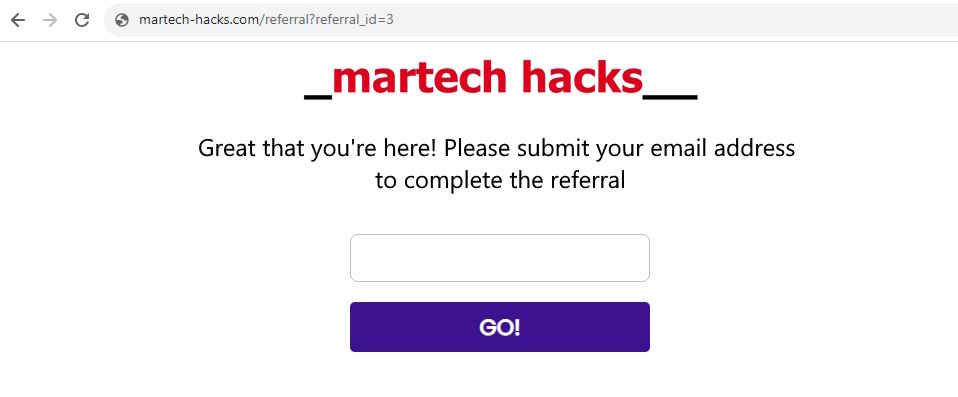
Once the referee submits their email address, a script is triggered which grabs the referral_id from the URL and sends it together with the referee’s email address to the Google web app.
I will take you through the coding steps at the bottom of the post.
3. Create the Google Sheet, Google App Script and web app for recording referrals
Onto the last prep step! Create a Google Sheet to save the referral details. Nothing complicated – you just need a few columns for recording the referral_id, referee email address and the timestamp that the referral was completed.
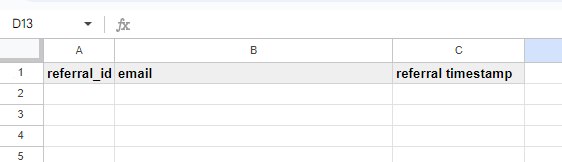
The Google webapp forms an API endpoint which can receive your referral details and log them to a Google Sheet. You will need to create a script which can handle POST requests made to the endpoint, read the data sent with the request and organise it to the appropriate columns.
I will take you through the coding steps at the bottom of the post.
Quote by David, about 20 seconds ago. Still applies.
***Kick off***
4. Send briefing email to referrers
This is when we kick off our referral process! You referrers must know about your program, so let’s inform them. You can build the email how you prefer (don’t forget to include your T&Cs), but the most important part is the referral link.
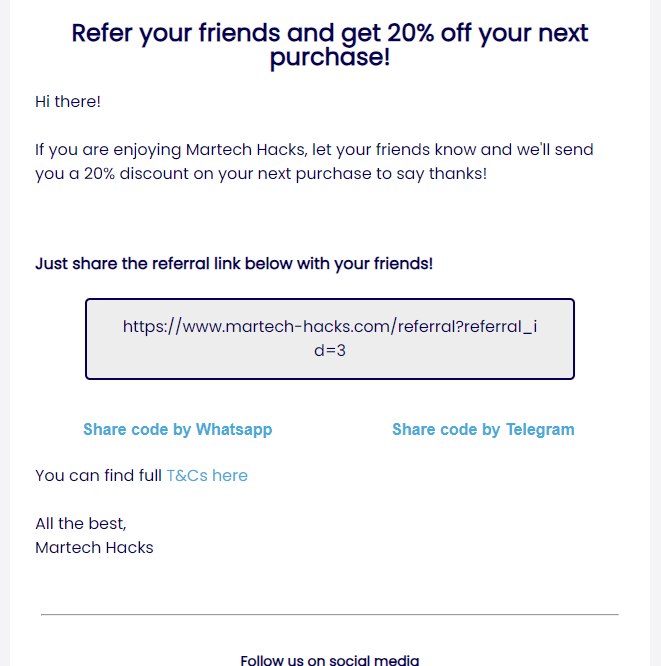
The referrer sends the referral link to their referee. The referral link sends the referee to the landing page. It contains a referral id, which identifies the referrer once the referee completes the referral. Simple!
The referral link is made up of the base link to your landing page, with the referral_id parameter appended and the referrers’ id. Format:
{{domain}}/referral?referral_id={{referral_id}}
This referral_id should be populated dynamically by the CRM tool when the campaign is sent. Typically, CRM tools use variables to achieve this; something like {{referral_id}}.
Check your CRM tool documentation!
***User flow***
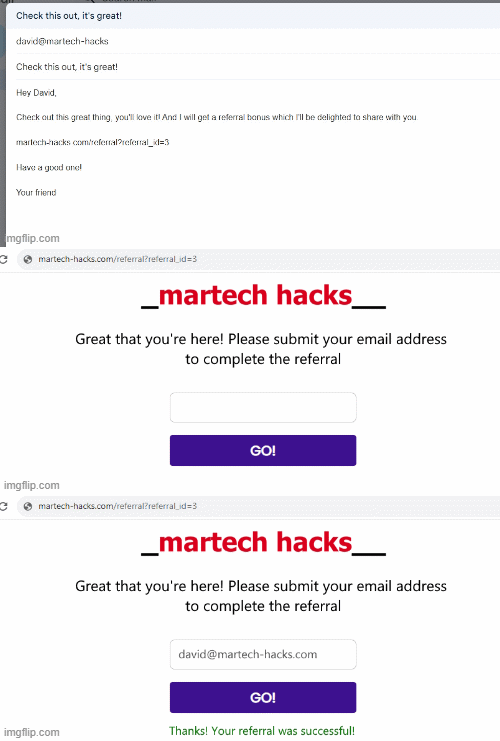
***Log referral***
Success! Once referrals are made, you should see the details popping up in your Google Sheet.
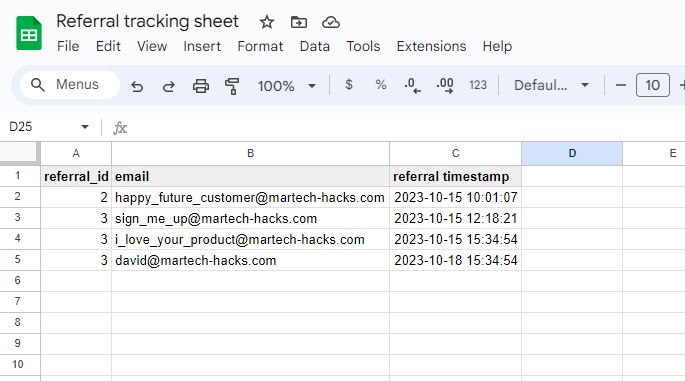
Of course, most companies want some kind of purchase commitment from referees before paying out any rewards, so you will need to check this sheet regularly and cross-reference referrals here with your company database. Or even better, write a script to integrate the two data sources!
Anything which happens after the referral is logged is entirely dependent on your product and infrastructure, and is out-of-scope for this post.
_How do I do the coding parts?__
Without further ado, let’s check how to do the coding.
***Landing page***
Note: for simplicity, this will be a totally stripped down version of the code necessary for the landing page, without CSS styles or all that jazz. I’ve also used an inline event trigger to cut down the script.
1. Add the HTML
The HTML body has an email input field, a submit button and a container for outputting error/success messages. Open up your IDE of choice and add the following code.
<div class="formContainer">
    <div class="elementContainer">
        <input type="email" id="emailInput">
    </div>
    <div class="buttonContainer">
        <button id="sendReferralButton" type="button" onclick="sendReferral()">GO!</button>
    </div>
    <div id="errorMessageContainer" class="errorMessageContainer"></div>
</div>
When the button is clicked, the sendReferral function will be triggered – so let’s set that up next.
2. Add sendReferral() function
(Another) note: this part includes an AJAX call which requires jQuery. Remember to add the library in your project! <script src=”https://ajax.googleapis.com/ajax/libs/jquery/3.5.1/jquery.min.js“></script>
Add the following code to your project:
<script>
/* Function for sending referral when submit button is clicked */
    function sendReferral() {

        /* Grab referral ID parameter from the URL */
        const urlParams = new URLSearchParams(window.location.search);
        const referralId = urlParams.get('referral_id')

        /* Get referee email address from the input box*/
        var refereeEmail = document.getElementById('emailInput').value;

        /* Define URL to send the referral data to. Remember to replace the test endpoint below!*/
        var url = 'https://api.myendpoint.com/' + '?referee_email=' + refereeEmail + '&referral_id=' + referralId

        $.ajax({
            url: url,
            type: 'post',
            dataType: 'json',
            success: function (response) {
                successReferral('Thanks! Your referral was successful')
            },
            timeout: 2000,
            error: function (response) {
                console.log("error")
            }
        })
    }
</script>
You will need to replace the API endpoint URL with the one from the Google Webapp. More on that shortly 😉
The AJAX call will send 2 parameters to the webapp:
- The referee email (friendEmail)
- The referrer’s id (referrerId)
3. Add successReferral() function
Notice the successReferral() function on AJAX call success?
That function is to output a success message if the referral has been sent. Add this following code above the sendReferral() function:
    /* Show success message for user on sucessful submission of email address*/
    function successReferral(successMessage) {
        document.getElementById('errorMessageContainer').innerHTML = successMessage
    }
***Google App Script***
Like the landing page, this will also be a very simplified version of something you might put into production.
In case you need to run through the Google App Script basics (how to create a script, how to deploy a webapp), check this post!
1. Open up Google App Scripts and add doPost() function
Create a new script, attached to your Google Sheet.
First, put in the doPost() function. This handles incoming POST requests from the API endpoint. It will try to run the add_row() function and when successful, it will return the value of that function.
/**
 * @OnlyCurrentDoc
 */

function doPost(e) {
  var content;
  /* Trigger add row function and return error message in case of failure */
  try {
    content = add_row(e);
  } catch (err) {
    content = '<error>' + (err.message || err) + '</error>';
  }
  /* return success/fail status message to endpoint */
  return ContentService.createTextOutput(JSON.stringify(content))
}
2. Add add_row() function
Next, add the add_row function. This will take the referral details and log them into the Google Sheet.
function add_row(e) {
  /* Parse contents of API call and set referral variables */
  var post_contents = JSON.parse(e.postData.contents);
  var referrer_id = post_contents.referral_id;
  var referee_email = post_contents.referee_email;
  /* Get current date for timestamp */
  const now = new Date();
  var nowFormatted = Utilities.formatDate(now, 'Etc/GMT', 'yyyy-MM-dd\'T\'HH:mm:ss.SSS\'Z\'')

  /* Get current spreadsheet to enter the referral data */
  var ss = SpreadsheetApp.getActiveSpreadsheet().getActiveSheet();
  /* Get the last row containing referral data */
  var last_row = ss.getLastRow();
  /* Add one to get the new row to add referral data */
  var next_row = last_row + 1;

  /* set referral values in correct cells */
  ss.getRange(referrer_id_column + next_row).setValue(referrer_id)
  ss.getRange(referee_email_column + next_row).setValue(referee_email)
  ss.getRange(timestamp_column + next_row).setValue(nowFormatted)

  /*return success status */
  return 'success'
}
It’s best to hard code the columns – the script runs faster this way. Put the column variables above the add_row() function:
/* Define target columns */
var referrer_id_column = 'A';
var referee_email_column = 'B';
var timestamp_column = 'C';3. Deploy script as a web app
Finally, you need to deploy the script as a webapp. Google will then provide an API endpoint for you to send the data. Make sure you set the web app to execute as ‘me’ and set access to ‘anyone’.
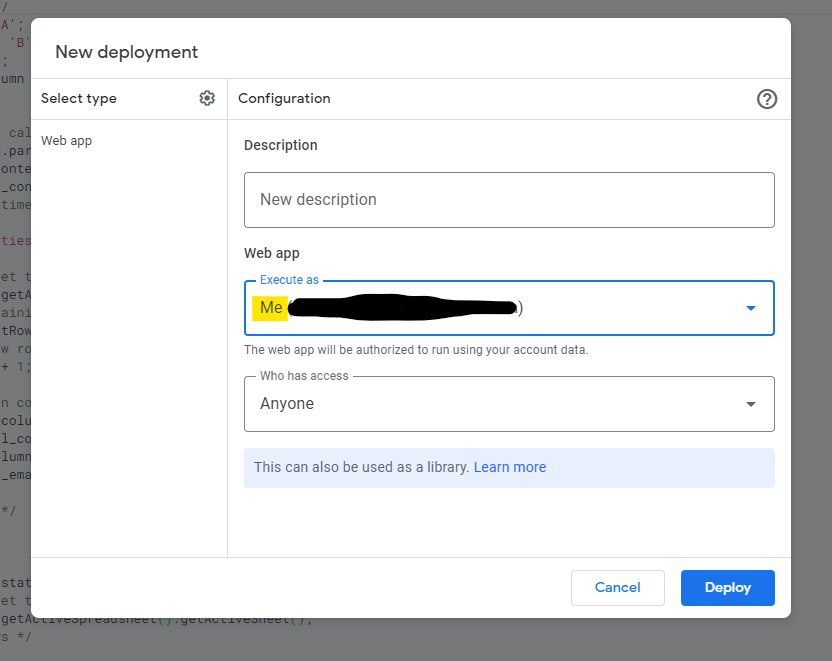
You will then be provided with a web app URL! Take this and add it to your landing page script as the API endpoint URL.
_Summing up__
Customer referral programs are super effective marketing acquisition strategies. In this post, we’ve run through an example of how you might set one up without dedicated engineering resources.
Bear in mind, this is a very simplified version!
At a minimum, you will want to add branding, T&Cs, additional information about your product/service and on the technical side – bot protection, error handling and automated checks for when to pay out rewards.
Have fun!